October 2026
A WiFi bridge on a Raspberry Pi
A Raspberry Pi that joins the student residence’s WiFi on its own, past the login page, and turns it into a network socket and a WiFi of my own: to the network it is a single device.
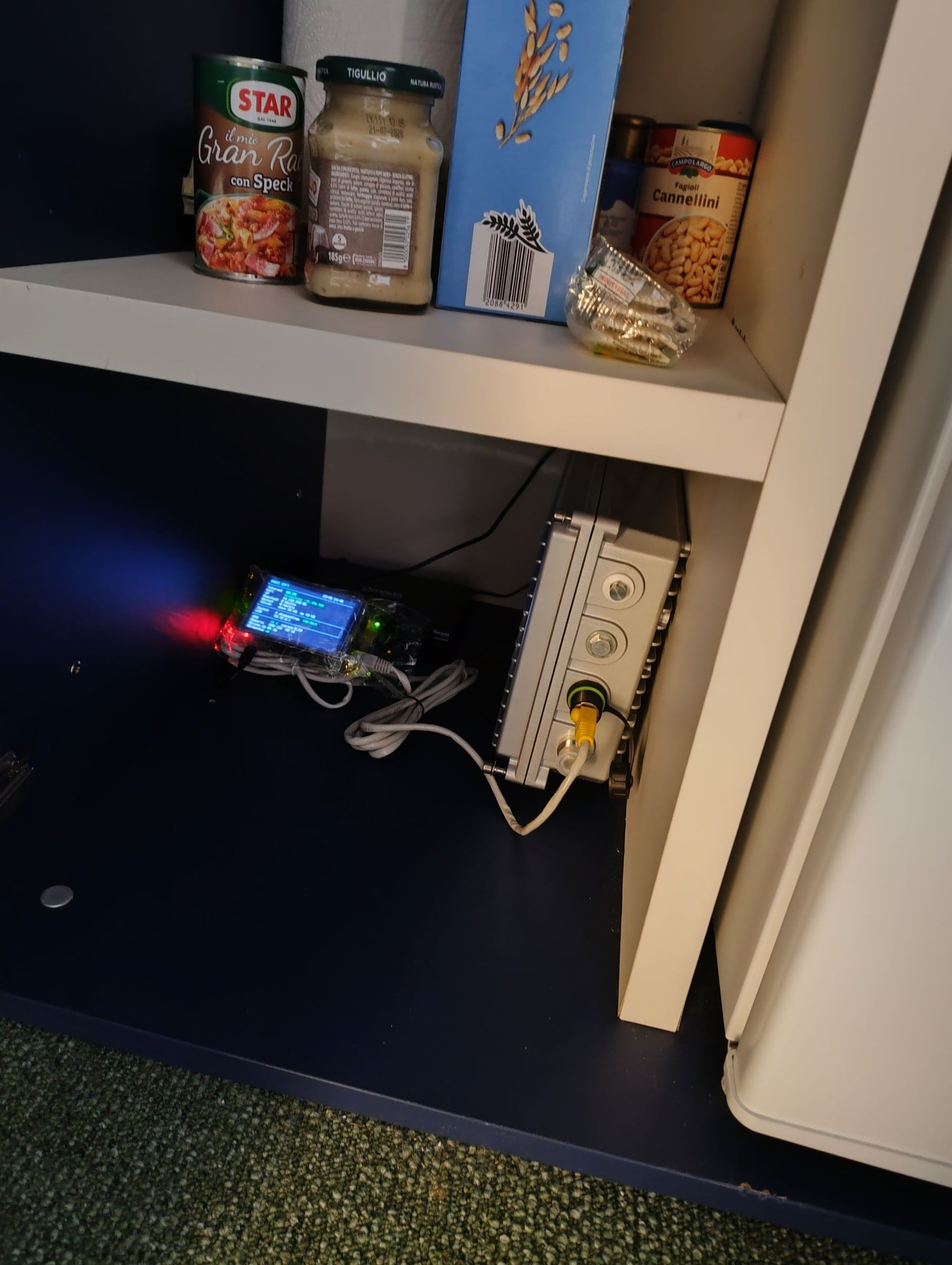
To get online on the student residence’s WiFi you have to log in from a web page, and every device that connects counts: the account allows a certain number, and when it is full the portal kicks out the oldest one. I needed several things connected, and I didn’t want each of them to count as a separate device.
So I built a bridge: a Raspberry PiA computer the size of a credit card, cheap and easy to program. 3 that connects to the residence’s WiFi, logs in for me and shares the connection over a network cable to a switchA box with lots of network sockets: it links wired devices together, like a power strip for network cables.. To the portal there is only one device, the Pi; behind it, on the switch, I plug in a PoE phone, a router, an Ethernet gatewayThe bridge between the radio network and the internet: it receives messages by radio and sends them to a server, and back. and other devices.
The project is public, with the code and the instructions: raspi-ponte-wifi on GitHub.
How it works
The Pi connects to the WiFi and acts as a small router on the cable: it gives an address to whatever is plugged into the switch and passes the traffic along with NATThe trick that lets many devices share a single internet address: the router, going out, presents them all with the same one., that is, showing the internet a single address. For all this I use what NetworkManager, the program that manages the networks, already offers, with no hand-written rules.
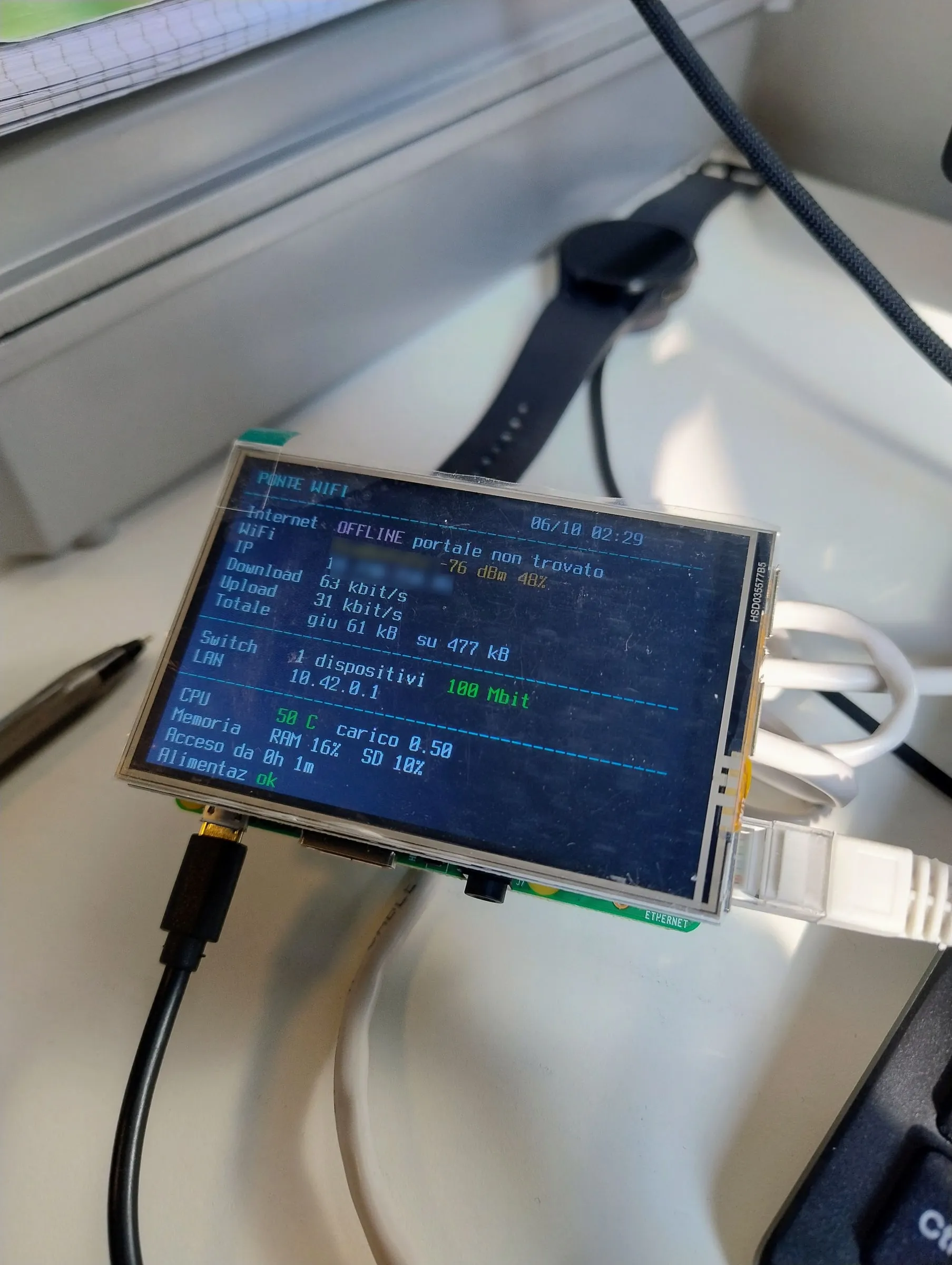 The small screen just after power-on, on 12 October: the portal had not been found yet.
Logging in the way a browser would
The access portal is one of those that intercept the first page you open and show a login form. My script, portale-login, goes through the same steps as a browser: the login page, one or two “Continue” pages, and finally a request that makes the internet really start. That last one cost me some time: without it the portal says “success” but you can’t browse.
Another detail that wastes time: the portal answers with an error to anything that doesn’t present itself as a browser, so the script has to say it is one.
The script runs every two minutes and every time the WiFi reconnects. Usually it isn’t needed, though: after the first login the portal recognises the Pi by its hardware address and lets it back in by itself, even after a blackout.
The small screen
On the Pi there is a 3.5-inch screen that always shows the status: whether there is internet, how strong the WiFi is, the speed, the VPNAn encrypted tunnel between two networks: from outside it feels like I’m connected to my home router, and nobody outside can see what passes through., how many devices are connected, the temperature, the memory. It is just a script that writes to the console, nothing to install. At night, between 23:00 and 7:30, it goes black; but if something is wrong the line turns red and the screen stays on regardless.
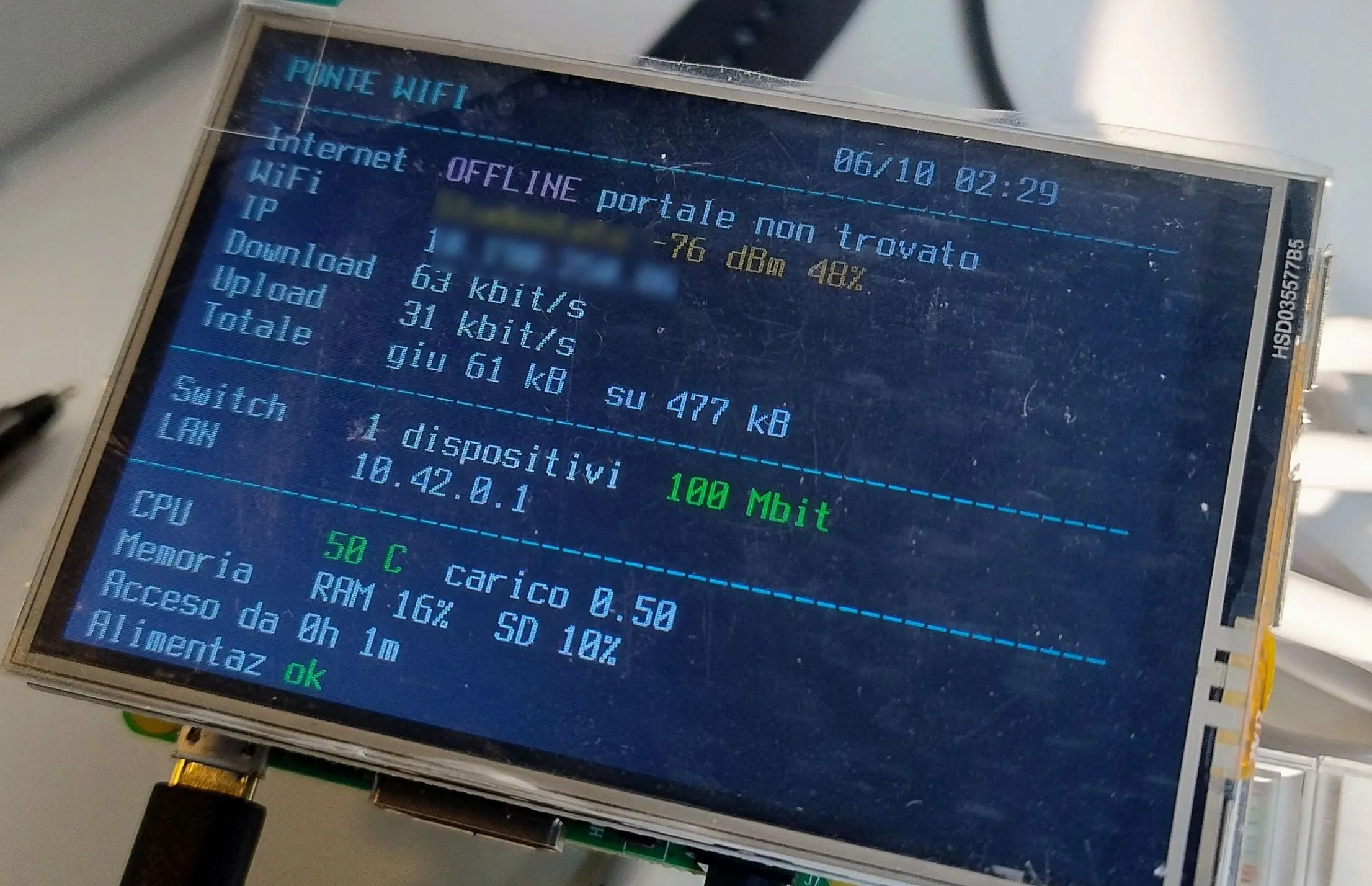 The status lines, up close.
Why it doesn’t freeze
The bridge sits in a corner and has to cope on its own, so I gave it three defences.
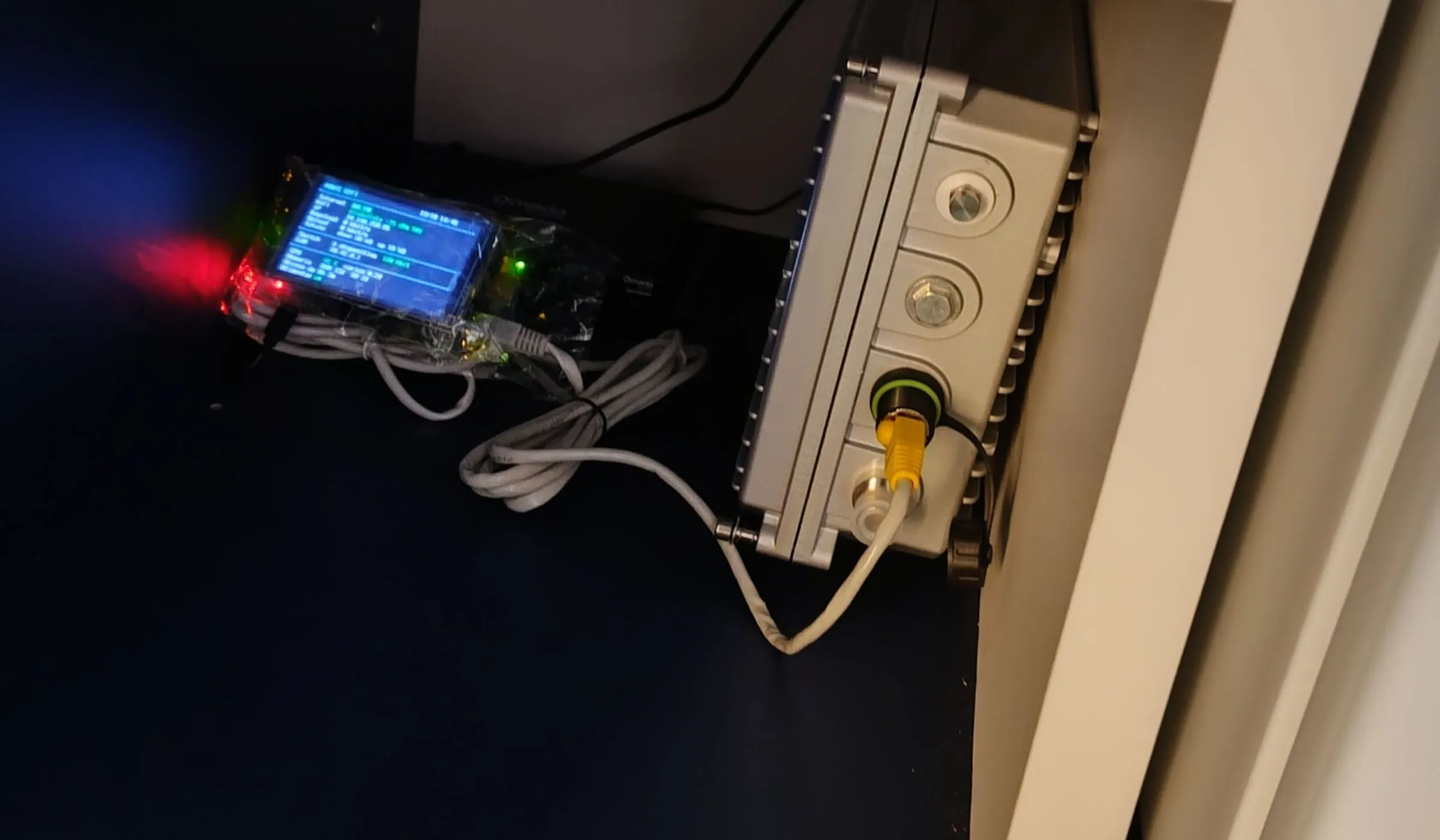 I was testing it here, and I ended up building a data centre in the pantry :) Then, of course, I moved it and tidied everything up.
They are:
- a guard for the WiFi: the Pi 3’s WiFi chip sometimes locks up, and the network doesn’t come back unless the power is pulled. My script checks every five seconds: if the WiFi is dead it reconnects it after 20 seconds, reloads the driver after 60 and, only if the Pi has been on for at least ten minutes, reboots it after 120. I tested it by removing the driver by hand: the network was back in a little over a minute;
- a read-only card: once everything works, the SD card is no longer written to, so a blackout can’t damage it;
- a watchdog: a mechanism in the chip itself that reboots it if it freezes completely.
The first card taught me a lesson: it corrupted itself, right after a write that I had verified. Now I put the files inside the image instead of copying them onto the card once it is written, and I read everything back after removing and reinserting it.
The VPN and my own WiFi
The bridge is also connected to the VPN I use for the rest of my servers: so, from outside, I can reach the switch even though the residence’s WiFi lets nothing in. Only the VPN’s own traffic goes through it, not everything, and I made sure that whoever is on the switch can’t get out towards my VPN.
With a USB WiFi stick the Pi is also an access pointThe device that broadcasts a WiFi network that phones and laptops connect to.: the stick acts as the “client” towards the residence, and the internal chip broadcasts a network of my own, for phones and laptops. It looked easy with NetworkManager, which can do this too, and instead no: my Android phone disconnected right after the last key exchange, showing the network as “saved” instead of “wrong code”. The code was right, as proved by the fact that the second message of the exchange was accepted. In the end I took the access point away from NetworkManager and gave it to hostapd, a program made for the job, and from then on it worked.
What I learned
That with a bit of patience even a closed network, designed for a few devices, bends to what you need, and that the longest part is never the program but keeping it alive: cards that get corrupted, chips that lock up, surprise reboots. And that an unpleasant surprise, like the access point one, can only be understood by looking at every single message that goes by.